Introduction
This documentation is for the users of CloudOps Move2Cloud, the multi-cloud assistant developed by Move2Cloud. You connect your cloud accounts, then ask in plain language: the assistant reads your Amazon Web Services (AWS), Microsoft Azure, Google Cloud, OVHcloud, Scalingo and Scaleway accounts to answer, and prepares the changes you ask for as a plan that runs only once you confirm it.
It is made for the people who run cloud infrastructure, alone or as a team: each organisation shares its cloud accounts, gives every member a role, and works on one subscription.
CloudOps Move2Cloud comes from the research and development of Move2Cloud, begun in 2024. This research earned Move2Cloud the Jeune Entreprise Innovante (JEI) status, confirmed by the French State for 2024 and 2025. The JEI status · The CloudOps Move2Cloud project
Why CloudOps Move2Cloud
Most cloud assistants and consoles were designed first for AWS, Azure and Google Cloud. CloudOps Move2Cloud was designed by Move2Cloud, a specialist of sovereign clouds, to run OVHcloud, Scalingo and Scaleway as well as the American clouds, from one console.
- The sovereign clouds handled like the others: OVHcloud Public Cloud projects, Scalingo apps and add-ons and Scaleway projects each have their assistant, which reads them and prepares the changes you ask for.
- One console for six clouds: a conversation per account, and the same plans, approvals and journal whatever the provider.
- Safety first: every change is a plan that someone confirms, a second pair of eyes when you want one, and a journal of what ran.
- Accesses you create and keep: no master key, the rights you choose, removed at once.
- A platform hosted in France: the application and its data at Scalingo, the files and e-mails at Scaleway, in Paris.
- A French publisher, Move2Cloud: an interface, support and invoices in French, prices in euros.
Key Features
One Conversation per Cloud Account
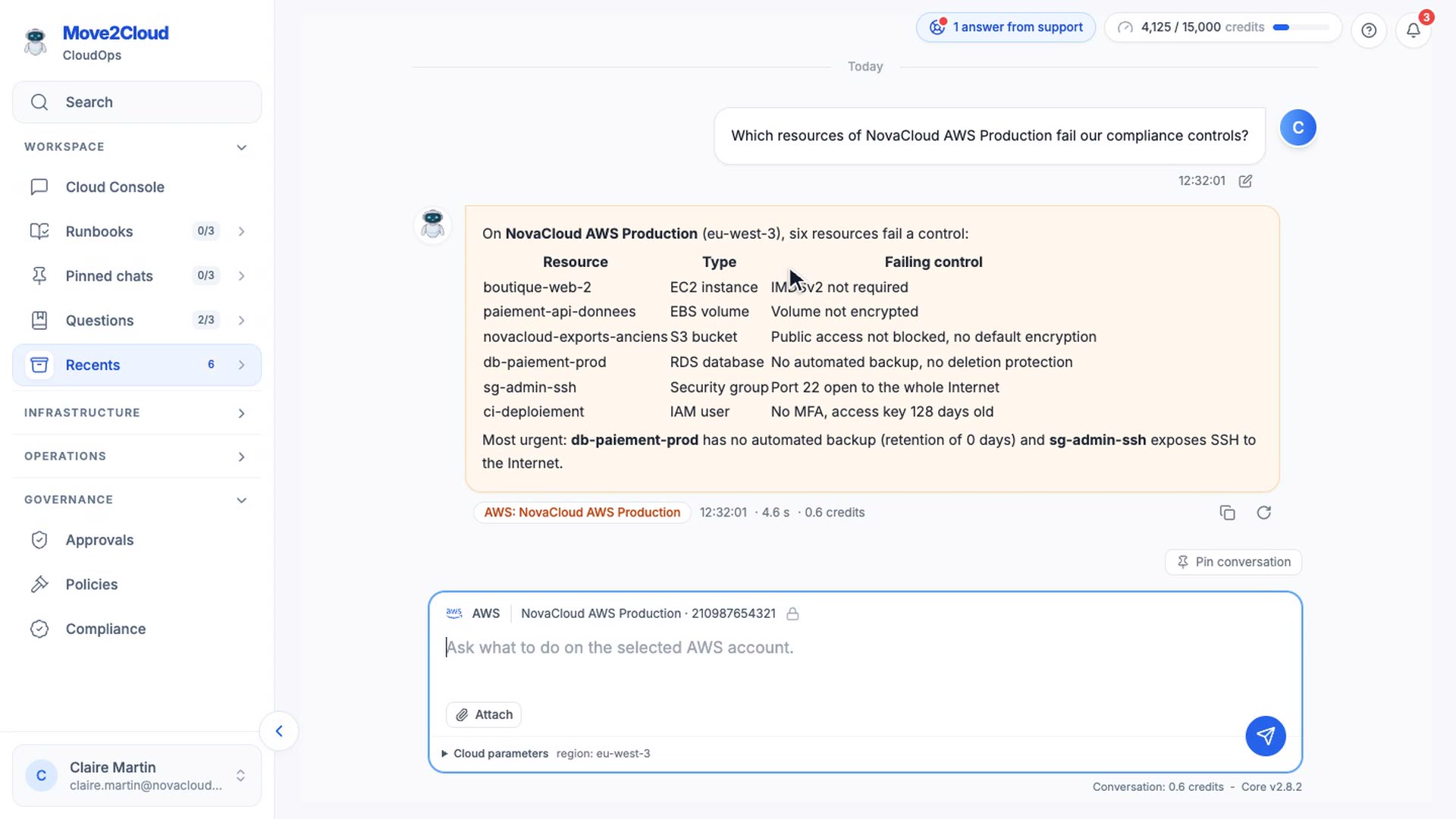
Ask about AWS, Azure, Google Cloud, OVHcloud, Scalingo and Scaleway accounts in plain language. Each conversation is bound to one account; you can attach images and text files to a question.
Delegated Secure Access
Connect cloud accounts using scoped permissions without sharing master credentials, maintaining security best practices.
Changes as Plans
Create, modify or delete resources by asking. The assistant shows the exact steps first, runs them only once you confirm, then reads the result back to tell you what really happened.
Teams, Roles and Plans
Invite colleagues into your organisation as read-only, operator or administrator. Cloud accounts and the monthly AI credits of your subscription are shared by the whole team.
Library of Questions
The questions your team asks again and again, kept for everyone by the administrators, and each member's own; the assistant suggests some from what an account really holds. One click asks a question, three can be pinned to the menu.
Approvals and Journal
An administrator can require their approval before an operator's change runs, or only before a deletion. Every change run is kept in the journal, with who confirmed it and what happened, summarised and exported as CSV or PDF.
What is CloudOps?
CloudOps is the day-to-day running of cloud infrastructure: knowing what runs and where, answering an incident, applying a change, keeping access and costs under control. It is the work of the teams who operate cloud accounts once they are built.
With several providers, each has its console, its words and its command-line tools: answering a simple question, such as which instances run in production or which backups are missing, means going from one to the other.
What CloudOps Move2Cloud brings
- One place to ask any of your cloud accounts a question, in plain language.
- Answers read from the account itself, not from a copy that may be out of date.
- Changes prepared for you, but run only once someone confirms them.
- A trace of what was asked and done, for the team and for audits.
Getting Started
Three steps put the assistant to work on your cloud accounts.
Create your account
On console.move2cloud.fr, sign up with your e-mail address or a Google, Microsoft, GitHub or GitLab account, then verify your address. Your organisation starts on Starter, free, and can open a 14-day trial once, without a card.
Connect a cloud account
Create at the provider an access whose rights you choose, read-only or wider, and give it to CloudOps: AWS, Azure, Google Cloud, OVHcloud, Scaleway or Scalingo. Removing that access at the provider cuts it at once.
Ask a first question
A new conversation offers questions of the library and read-only runbooks recommended by Move2Cloud for your providers. The First steps guide then walks you through the rest: the plan, exports, notifications and the team.
On Starter: one person, one cloud account and 20 AI credits a month; the assistant answers and analyses, but runs no change. The plans and what each includes are on the Plans page. See the plans
The step-by-step guide is in How to, for the members of an organisation. Open the detailed guide
Cloud providers and the access they need
Move2Cloud reads and acts on each cloud account only through an access you create and keep the control of: the rights are yours to choose, and removing the access cuts it at once.
Sovereign clouds
 Sovereign clouds
OVHcloud
API keys you create for Move2Cloud, limited to the Public Cloud project and to the rights you choose.
Answers of the assistant produced in the European Union.
Scalingo
An API token dedicated to Move2Cloud, which you can revoke at any time.
Answers of the assistant produced in the European Union.
Scaleway
An IAM application dedicated to Move2Cloud, with a policy limited to the project.
Answers of the assistant produced in the European Union.
American clouds
 American clouds
AWS
A role created in your account by a ready-to-launch CloudFormation stack, with the rights you choose: no access key to hand over.
Answers of the assistant produced in the United States, under the standard contractual clauses of the European Commission.
Azure
The CloudOps Move2Cloud application, which you authorise in your directory and give roles to: no secret to hand over.
Answers of the assistant produced in the United States, under the standard contractual clauses of the European Commission.
Google Cloud
The Move2Cloud service account, which you give roles to on your project: no key to hand over.
Answers of the assistant produced in the European Union.
A conversation without a cloud account, for a general question, has its answers produced in the United States.
What the assistant can do on an account
Two sets of rights apply together, and the assistant never goes beyond either: those you gave Move2Cloud at the provider, and the role of the member in CloudOps.
- A reader only has questions answered, even when the access at the provider allows changes.
- An operator may get a plan for a change the access does not allow: the provider then refuses the step when it runs, nothing after it runs, and the report names the missing right and where to grant it.
- What a change creates or keeps running, an instance, a disk, an address, is billed by your provider under your contract with it, as if you had done it yourself; Move2Cloud bills nothing for it. A few reads are billed by the provider too, such as each request to AWS Cost Explorer.
When your cloud accounts are read
Three things use the access you give, and only the last one changes anything:
- The assistant: a question, an analysis or a runbook run reads the account chosen, within the access given; a schedule runs read-only runbooks at set times, in the name of the member who created it.
- The collectors of the operations modules, from the Pro plan: they read each account by themselves for the inventory and the health, the inventory every six hours or when an operator refreshes it, with calls that only read, listed in advance, and without the assistant. A collection changes nothing in your accounts; a hidden account, or one beyond your plan, is never read.
- Changes: only a plan confirmed, and approved when the organisation's rules require it, writes to an account; the actual state is then read again.
The step-by-step setup of each provider is in How to, in the console. Open How to
Managing Cloud Resources
Once a cloud account is connected, you manage its resources from a conversation in Cloud Console:
What it brings
- One access to six providers: AWS, Azure, Google Cloud, OVHcloud, Scaleway and Scalingo.
- Questions in plain language, without going from one provider's console to another.
- Answers read from the account itself, in the context of its provider, its account and its default parameters.
- Changes prepared as plans you can check before anything runs.
Ask and Read
Choose the provider and the account, then ask: "which instances are running?", "what does this bucket contain?". Reads run at once, within the rights you gave the assistant on that account.
Prepare a Change
Ask for a change and the assistant looks up the real names and identifiers, then proposes a plan: the steps, the values that will be sent and the level of risk. Nothing has changed yet.
Confirm and Verify
Confirm the plan to run it, or cancel. After running it, the assistant reads the resources again and reports what succeeded, what failed and what is still in progress. A step that fails stops the plan, with nothing undone: ask again for a new plan.
Set Default Parameters
Give each account its defaults (region, network, machine size, or parameters of your own): the assistant uses them when you do not say otherwise, so that requests stay short and predictable.
From a question to a change
- 1
Ask a question
Ask about a cloud account in plain language: the assistant reads it, within the access you gave, and answers. Nothing is changed.
- 2
Analyse a resource
From the inventory, the health or an incident, the assistant analyses a resource from its dated facts, without any change tool. Nothing is changed.
- 3
Consult a runbook
Read a template of the catalogue or one of your organisation's runbooks: its steps, its inputs and its providers. Reading runs nothing, and a read-only runbook only reads the account.
- 4
Prepare an operation
Ask for a change, or run a change runbook: the assistant writes a plan with the steps, the values it will send and the risk. Nothing has changed yet.
- 5
Submit it for approval
Depending on the team's rules, an operator's plan waits for an administrator, who approves or refuses it. A plan runs only once confirmed or approved; the assistant then reads the account again and reports what really happened.
On the Starter plan, the assistant answers and analyses, describing what it would change, but runs no change. The approval of changes comes with the Pro and Enterprise plans.
The step-by-step guide is in How to, for the members of an organisation. Open the detailed guide
Your Conversations
Every conversation is kept, named and found again in History, and in the menu for the latest ones.
Yours only
A conversation is read only by the member who held it, administrators included. A link to another member's conversation, or to one deleted, says so instead of opening an empty one; an administrator finds every member's changes in the journal.
Search
Search, at the top of the sidebar or with Cmd/Ctrl K, finds your conversations by their name, the questions of the library by their text and the runbooks by their name, description, category or resource type. A question found opens a new conversation with it written in; a runbook found opens in the library.
Keep a record
From History, download a conversation as PDF, drawn as on screen, or as Markdown: what was asked, answered and changed, with the dates. Its name starts with the provider and the day it began; a copy is kept 30 days in My data → Generated files.
Follow the answer
While the assistant prepares its answer, you see what it is reading in your account, one read after the other. Nothing is changed without your confirmation.
The step-by-step guide is in How to, for the members of an organisation. Open the detailed guide
Library of Questions
The questions you ask again and again, kept for the team and for yourself, written in a new conversation in one click.
The team's library
Shared with every member of the organisation and kept by its administrators: the questions the team asks again and again, each bound to a cloud account or left to the one chosen when asking. An administrator changes or removes them, or hides one from the team: the members no longer see it, the administrators still do, marked Hidden from the team, and can show it again.
My questions
Each member keeps their own, seen by them alone: write them, change them, remove them. An administrator adds one of theirs to the team's library in a click: it moves there.
Suggestions of the assistant
Choose a cloud account: the assistant reads it, without changing anything, and suggests a dozen questions about what it really holds (costs, unused resources, security, backups). Keep those you want, change them first if you wish, in your questions or, for an administrator, in the team's library. It uses the AI credits of the team.
Ready to send
Ask opens a new conversation on the question's account, the question written in the message box: send it as it is, or change it first. A new conversation also shows two questions of the library, the pinned ones first, for its cloud or, before one is chosen, for the clouds you have an account on. In a demonstration organisation, the questions are seen and asked, not changed.
The step-by-step guide is in How to, for the members of an organisation. Open the detailed guide
Runbook library
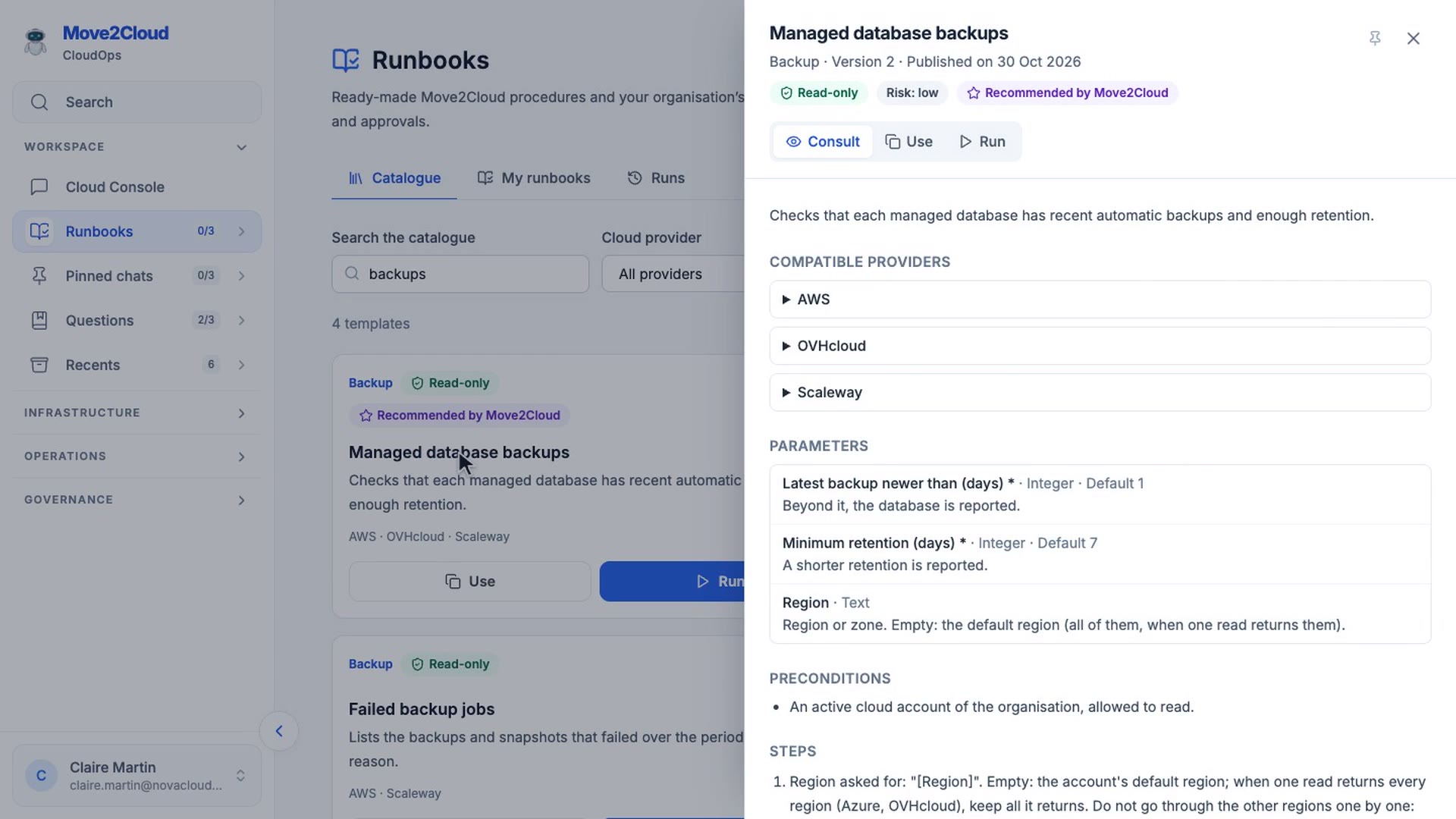
Runbooks are written procedures the assistant follows on a cloud account: Move2Cloud's catalogue of ready-to-use templates, and your organisation's own runbooks.
What they bring
- Procedures written once, reused by the whole team on every compatible account.
- Operations run the same way each time, from Move2Cloud's templates or your own.
- Each version validated by an administrator before the team runs it.
- Each run kept, with its status, its duration and its result.
- Written by operators, validated by administrators, shared with the team.
Ready-to-use templates
More than 150 templates written by Move2Cloud, by provider and category, each read-only or change. Consult one to read its steps, inputs and compatible providers, run it on a compatible cloud account, or copy it into your runbooks. The catalogue is open to every plan.
Your own runbooks
Operators and administrators write the organisation's procedures, with parameters. Each version is validated by an administrator before the team runs it. Up to 10 runbooks on Standard, 50 on Pro and 200 on Enterprise. The owner can delete one for good, with all its versions; its runs are kept.
From Git
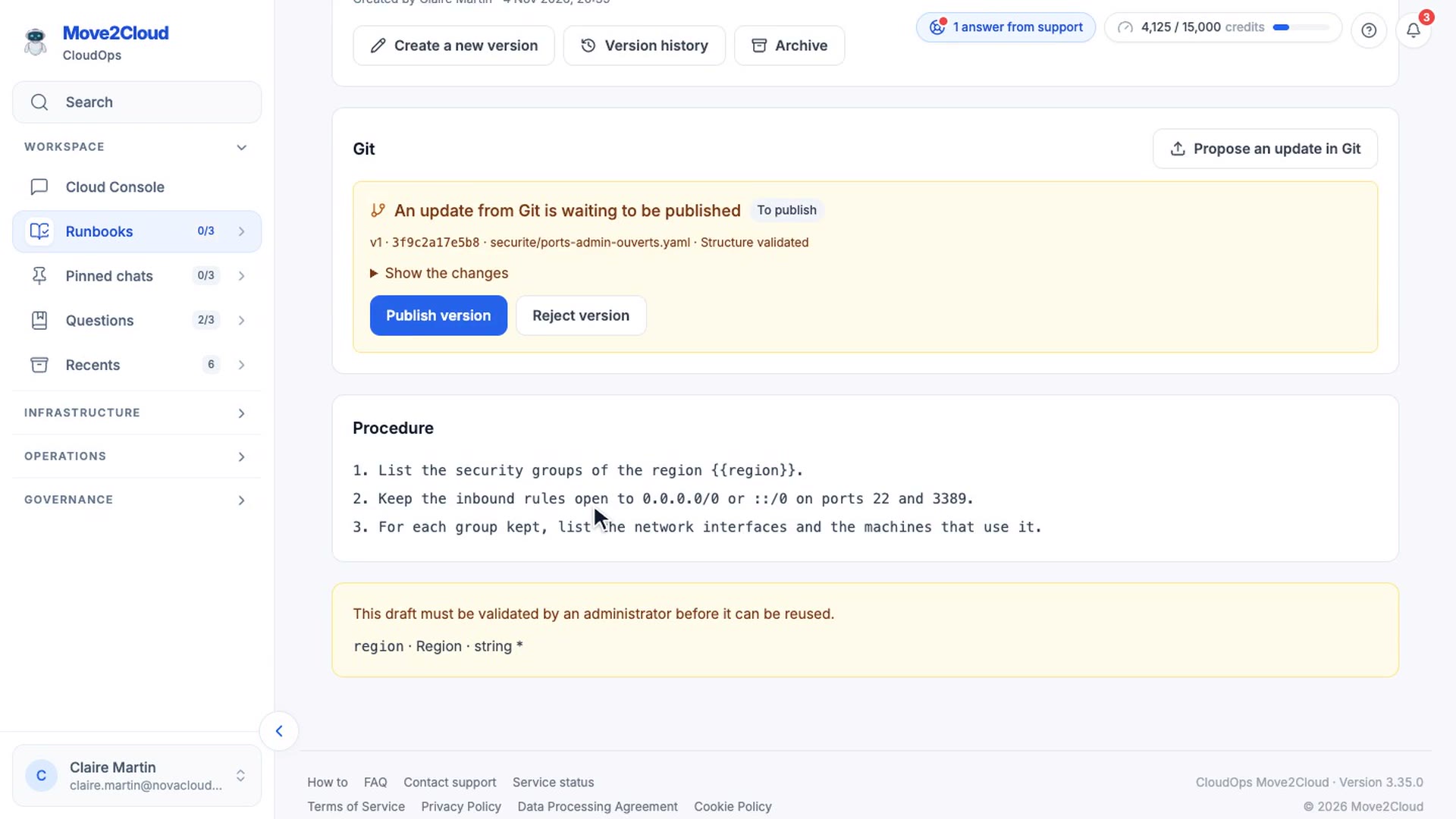
With the Enterprise plan, runbooks come from a GitHub or GitLab repository: each synchronised file becomes a draft, which an administrator publishes after reading its changes. Nothing of the repository is ever run.
Checked before each run
A run starts only for a member whose role allows it, on a compatible cloud account they may use, with a validated version, its required inputs and AI credits left. A read-only runbook only reads the account; a change runbook prepares a plan, which runs only once confirmed, after the approvals the organisation requires.
Followed and kept
Each run opens its own conversation and is listed in Runs with its status, its duration and its result. A prepared plan is not an executed change: approval, execution and the check of the actual state are separate steps.
The step-by-step guide is in How to, for the members of an organisation. Open the detailed guide
Plans and confirmation
On a cloud account, a wrong command can stop a service or delete data. That is why the assistant never changes anything straight away: a change you ask for is first written as a plan, which shows:
- The steps, in the order they will run, with the exact commands.
- The risk, from low to high, and what a step may interrupt.
- What has to be confirmed before it runs.
Nothing has changed until the plan is confirmed; cancelling it leaves the account as it was. Once it has run, the assistant reads the account again and tells you what really happened: a step that failed is reported, not hidden.
A provider accepting a request does not prove by itself that the resource reached the expected state: after the change, the console checks the actual state and says what it could prove. Only the plan reviewed runs: one that changed after its approval is refused.
A step that fails stops the plan: the next steps do not run, those already done stay in place and the report shows them. Nothing is undone on its own, and a plan cannot be stopped once it runs: to go on, or to undo what was done, ask again, and the assistant prepares a new plan to confirm.
Roles and approvals
Not everyone in a team needs the same rights. Giving each person only what their work requires, the principle of least privilege, limits what a mistake or a stolen account can do.
- Reader: asks questions; no change is prepared or run for them.
- Operator: prepares and runs changes.
- Administrator: also manages the team, the cloud accounts and the rules.
- Owner: the administrator who holds the subscription, its invoices and its means of payment.
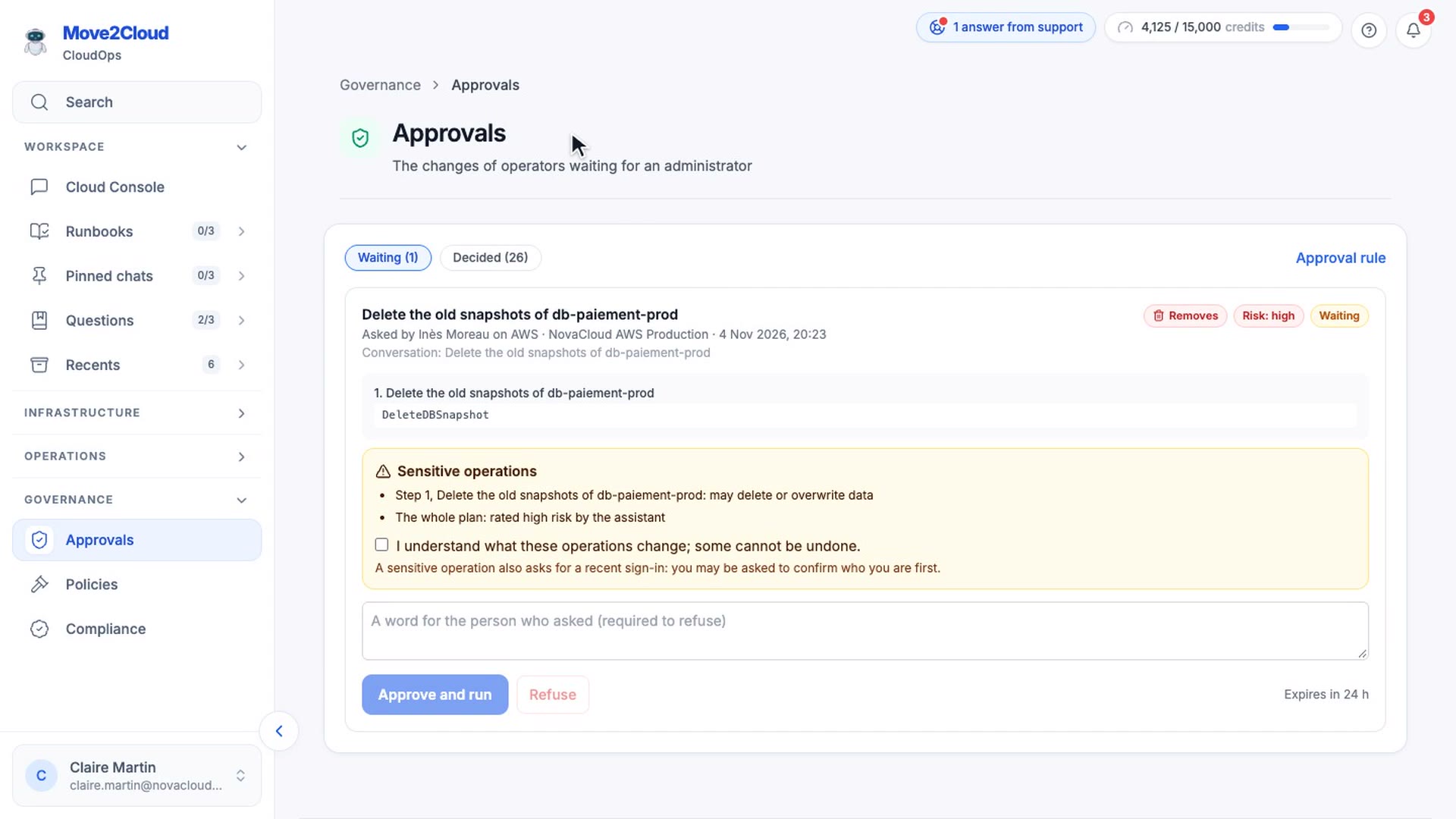
For the changes that matter most, a second pair of eyes helps: with the Pro and Enterprise plans, an administrator can require their approval before an operator's change runs, for every change or only for the sensitive operations (deletions, stops, changes of access or of network exposure, commands run on a server). The change waits, with its plan and its risk, until an administrator approves it or refuses it with a reason. Only the plan read runs: changed meanwhile, it is refused; the resources themselves are not read again before it runs.
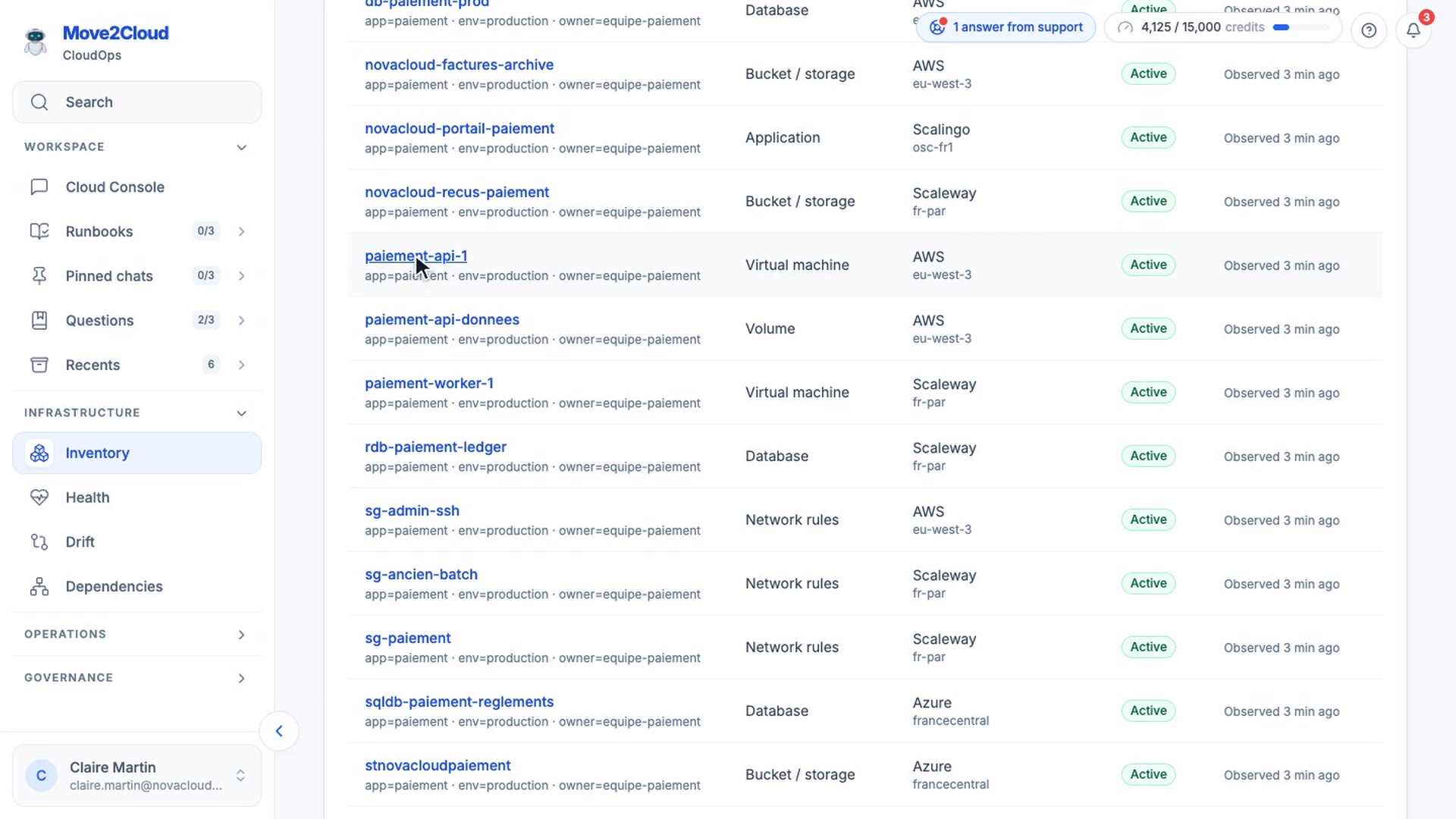
Inventory
One inventory of the resources of all your cloud accounts, read from the providers, each with the date it was observed.
The ten operations modules
- Multicloud visibility: one inventory of every connected cloud account.
- The health of the resources, from the providers' own signals.
- Drift between your infrastructure as code and what runs.
- Incidents followed from detection to resolution.
- The dependencies between resources, as the providers state them.
- Schedules of read-only checks, and a calendar of the planned changes.
- Governance: policies checked before a change runs, and insights drawn from what is recorded.
- Technical compliance controls measured on the inventory.
- Every module comes with Pro, limited (essential compliance controls, policies observed only), and complete with Enterprise.
What you see
Each resource with its provider, cloud account, type, state, region and tags. Its record gives its attributes, its health, the controls that apply to it, the links the provider states and each version observed.
What it brings
One view across AWS, Azure, Google Cloud, OVHcloud, Scaleway and Scalingo, built by collectors that only read, without the assistant: what is shown was observed, never generated.
Example
Filter on the tag of an application to bring up its resources across several providers, open a production machine whose health is critical, then export the filtered view as CSV.
With your plan
From the Pro plan.
The step-by-step guide is in How to, for the members of an organisation. Open the detailed guide
Health
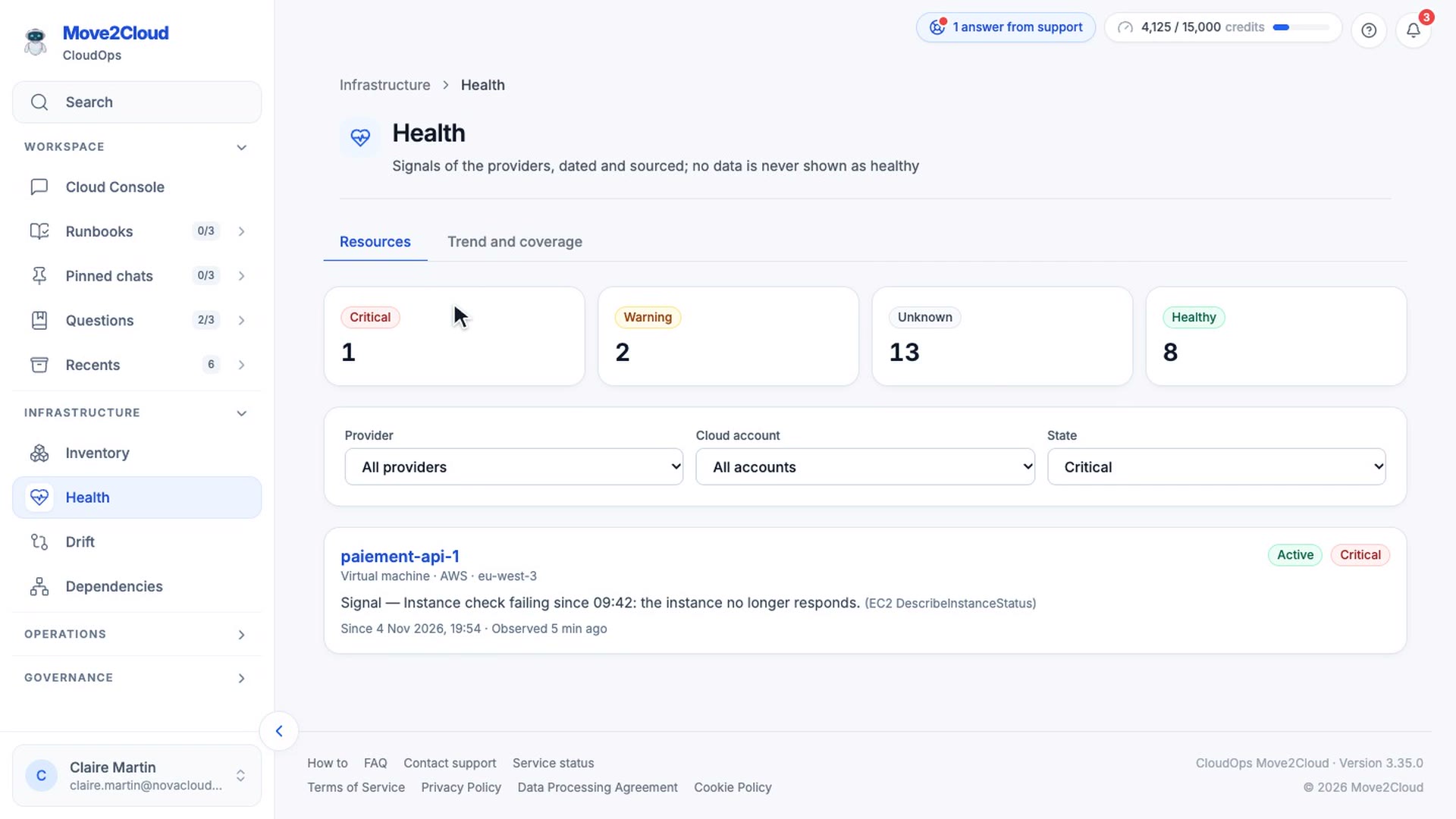
The state of each resource from the signals the providers give: healthy, warning, critical or unknown, each with its source and its date.
What you see
The resources by state with the signal behind each, the degradations of the last 14 days, and for each provider the share of resources with a recent signal.
What it brings
A problem seen in one place, whatever the provider. Without a fresh signal, a resource stays unknown: it is never presumed healthy.
Example
A payment machine fails its status check: it goes critical, the administrators are notified once and an incident opens. The assistant can diagnose it from the dated facts, read only.
With your plan
From the Pro plan.
The step-by-step guide is in How to, for the members of an organisation. Open the detailed guide
Drift
The expected state declared in your Git repository, compared with the state the inventory observed.
What you see
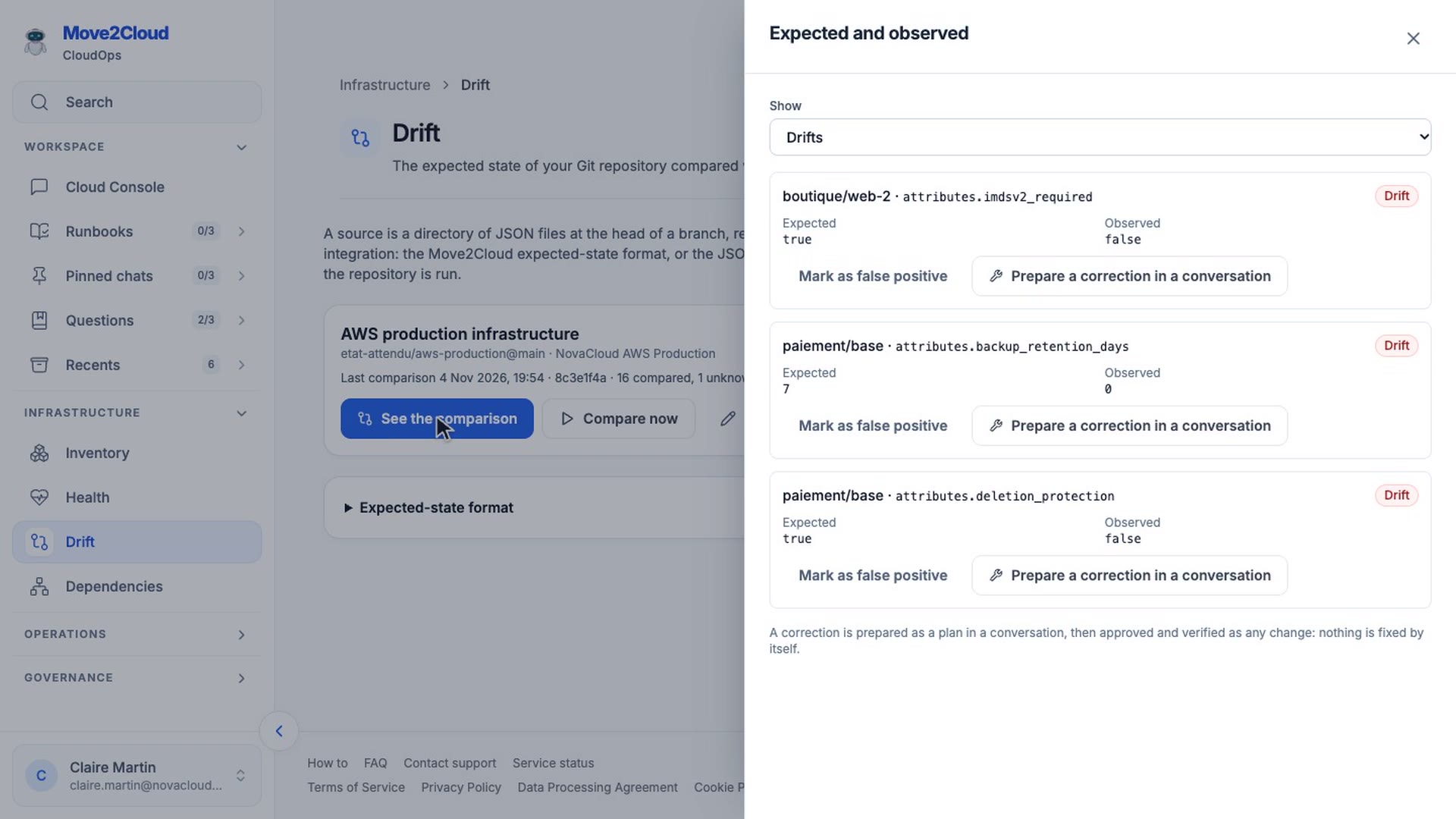
Each source compared (a GitHub or GitLab repository, its branch and folder, a cloud account), the expected and observed values side by side, the drifts and what could not be observed.
What it brings
Changes made outside your infrastructure as code are found, property by property. Nothing of the repository is ever run, and secrets are never compared.
Example
The backup retention of a production database went from seven days to zero: the drift is shown, and Prepare a correction opens a conversation whose plan is approved and verified like any change.
With your plan
From the Pro plan.
The step-by-step guide is in How to, for the members of an organisation. Open the detailed guide
Dependencies
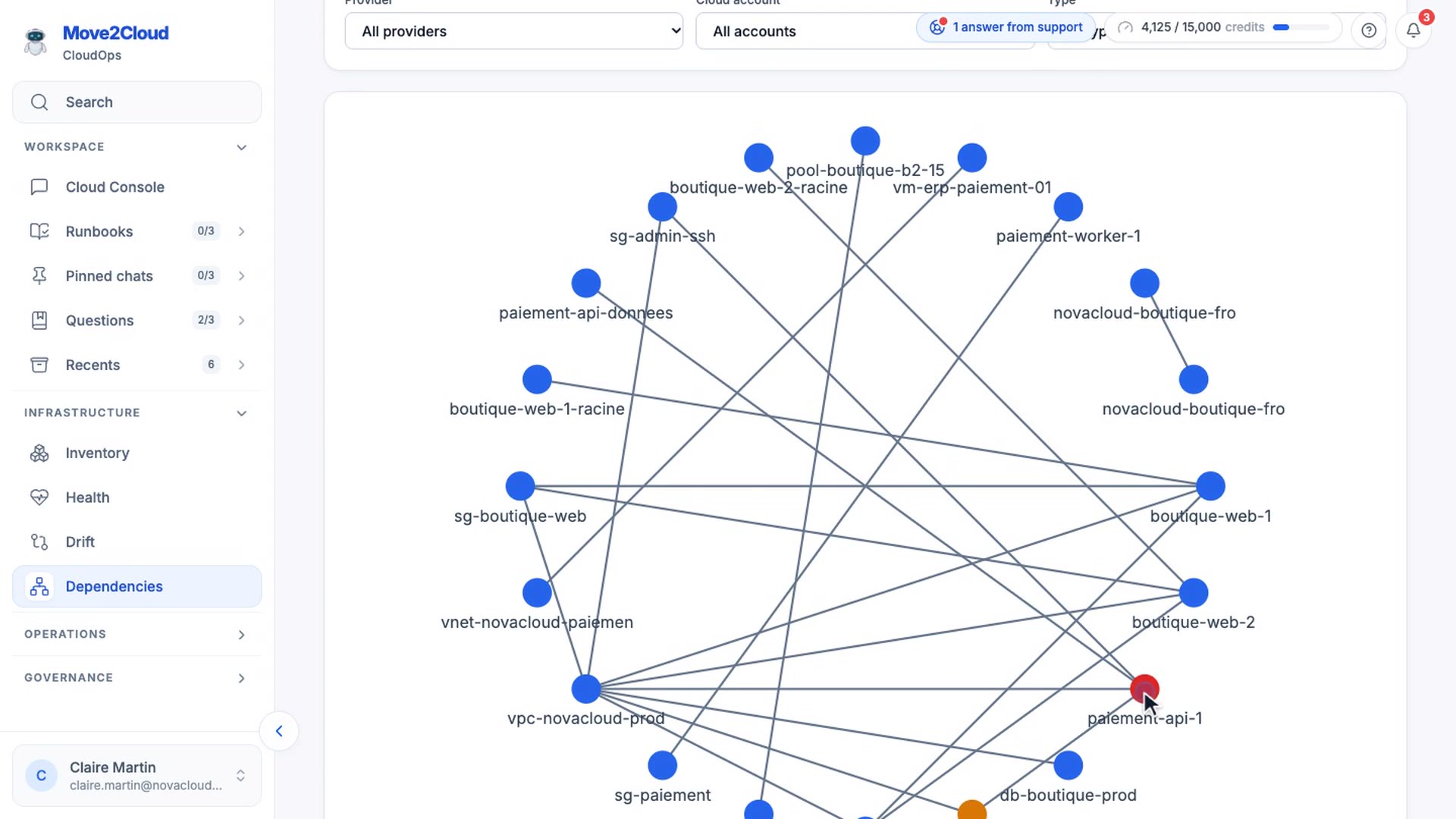
The links between your resources that the providers' own answers state: a disk attached to a machine, a machine in a network, a database used by an application.
What you see
A map around a resource, one or two links away, and the same links in a list, each with the provider field that states it and the date it was observed.
What it brings
The context of a resource before a change or during an incident, with no link guessed from a name or a tag. It is not an exhaustive impact analysis.
Example
Centred on a critical machine, the map shows its network, its security group, its data disk and the database it uses; each one opens on its inventory record.
With your plan
From the Pro plan.
The step-by-step guide is in How to, for the members of an organisation. Open the detailed guide
Incidents
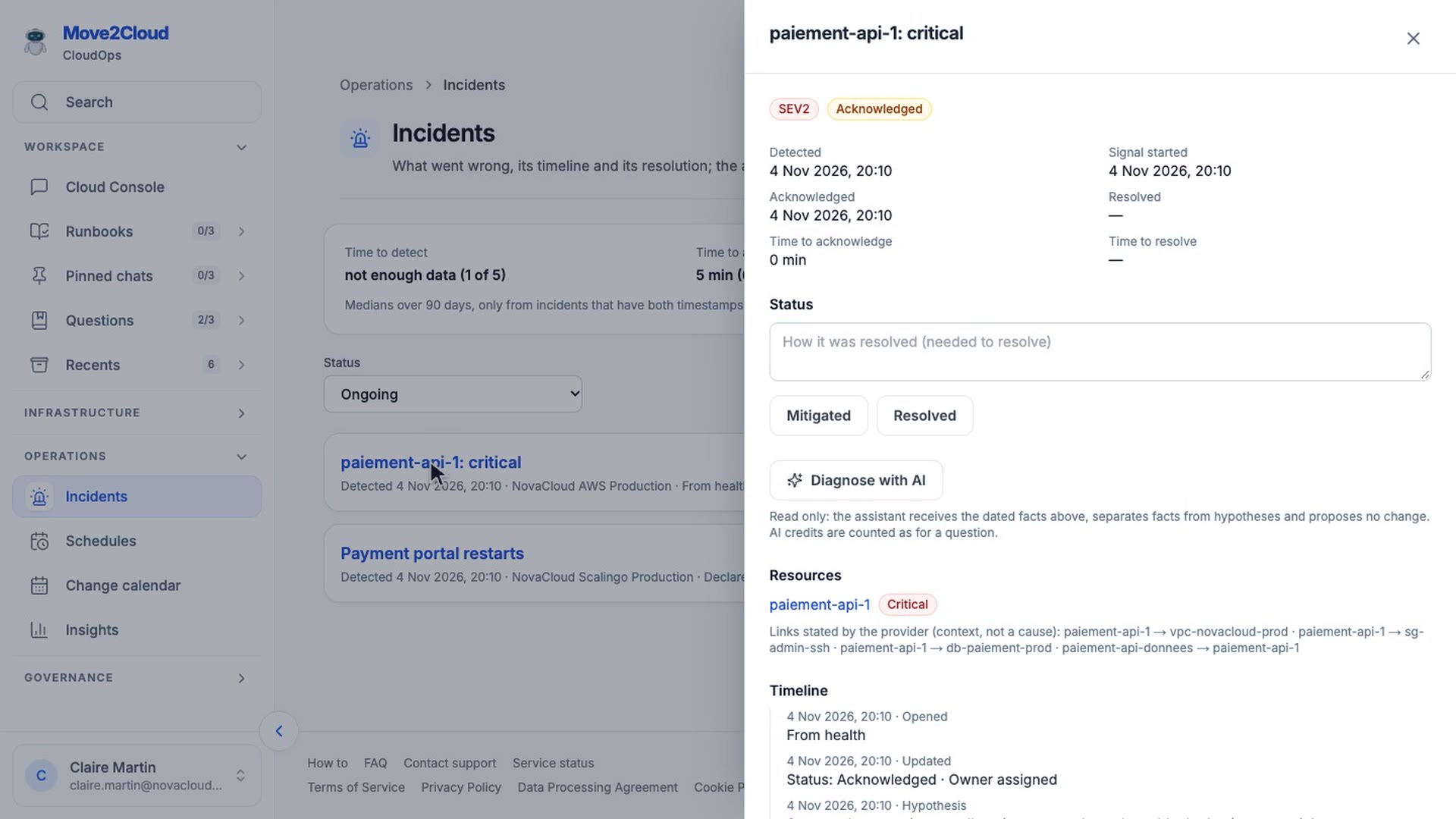
The follow-up of what goes wrong, from detection to resolution: source, severity, resources, owner, timeline and resolution.
What you see
Open and resolved incidents, each with its timeline of comments, hypotheses (shown as such) and actions, and the median times to acknowledge and to resolve over 90 days.
What it brings
One shared record for the team. An incident opens once: by itself when a resource goes critical, or declared by an operator.
Example
The incident of a payment machine, opened by the health, is acknowledged. The assistant diagnoses it read only, the operator adds the restart to the timeline, then resolves it saying how.
With your plan
From the Pro plan.
The step-by-step guide is in How to, for the members of an organisation. Open the detailed guide
Schedules
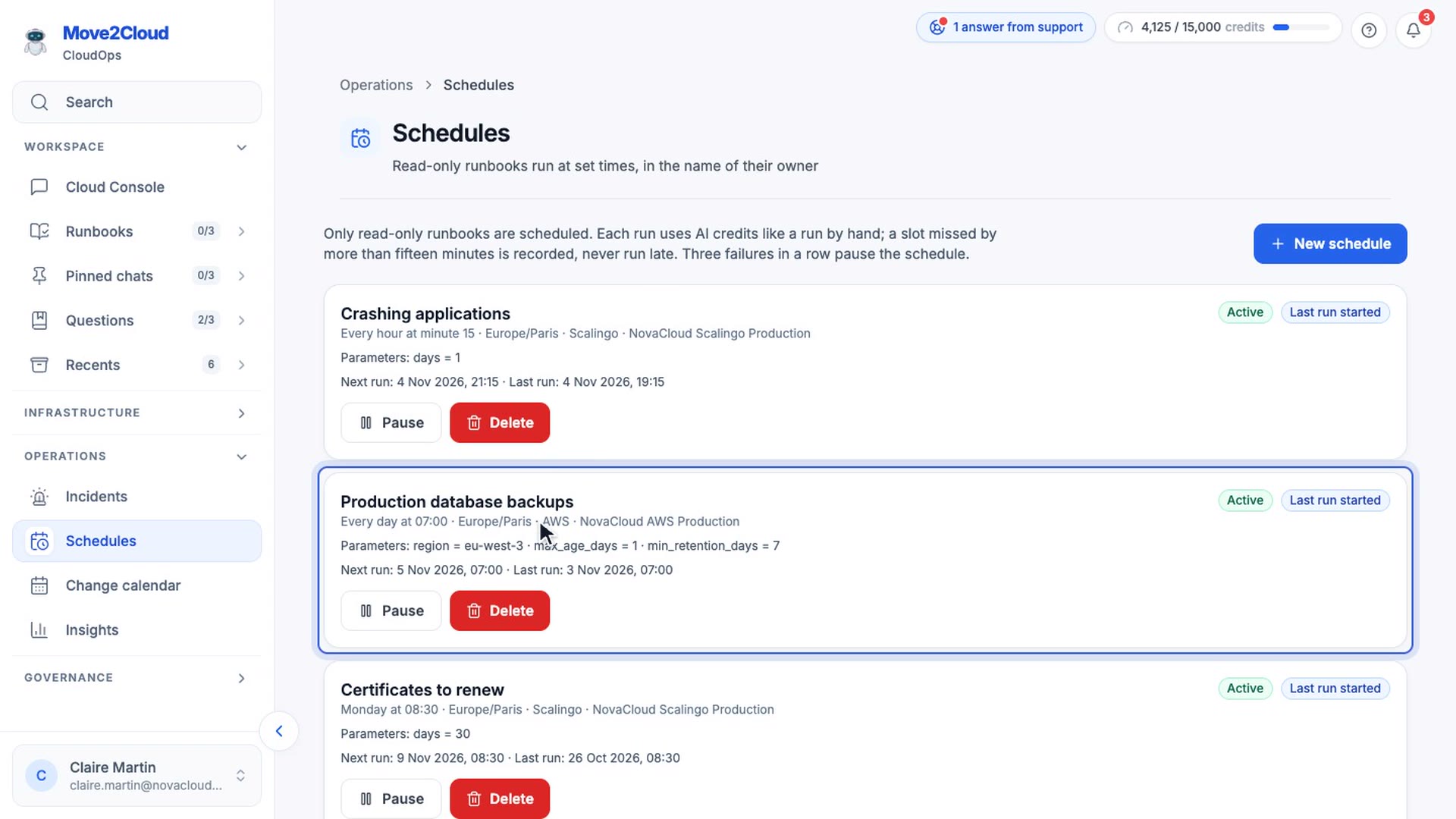
Read-only runbooks of the catalogue, run at set times on a cloud account.
What you see
Each schedule with its frequency, its time zone, its cloud account and its parameters, then its next and its last run.
What it brings
Recurring checks that nobody has to think of. A runbook that changes anything is never scheduled, and each run is checked again before it starts.
Example
Check the administration ports open to the Internet on the production account every Monday at 8 o'clock, Paris time. Each run uses AI credits like a run by hand.
With your plan
From the Pro plan.
The step-by-step guide is in How to, for the members of an organisation. Open the detailed guide
Change calendar
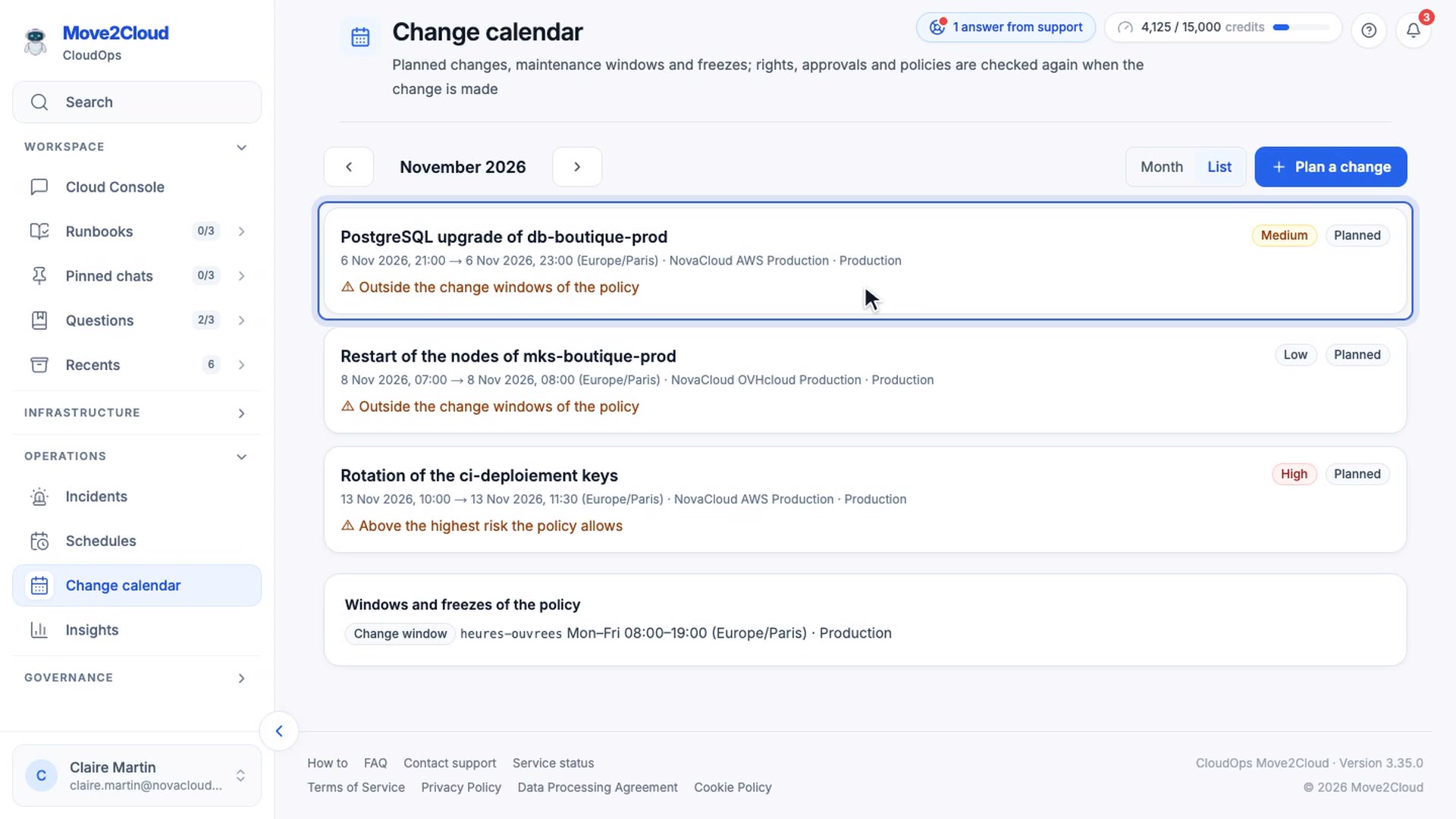
The changes planned on your accounts, with the change windows and freezes of your policy, by month or as a list.
What you see
Each planned change with its cloud account and its risk, and the warnings: two changes at once on one account, a change outside the windows, during a freeze or above the highest risk allowed.
What it brings
Conflicts seen ahead. Being in the calendar allows nothing: when the change is made, its plan, its approval and the policies are checked as always.
Example
A database upgrade planned outside business hours is flagged in orange; a disk extension placed inside an allowed window carries no warning.
With your plan
From the Pro plan.
The step-by-step guide is in How to, for the members of an organisation. Open the detailed guide
Insights
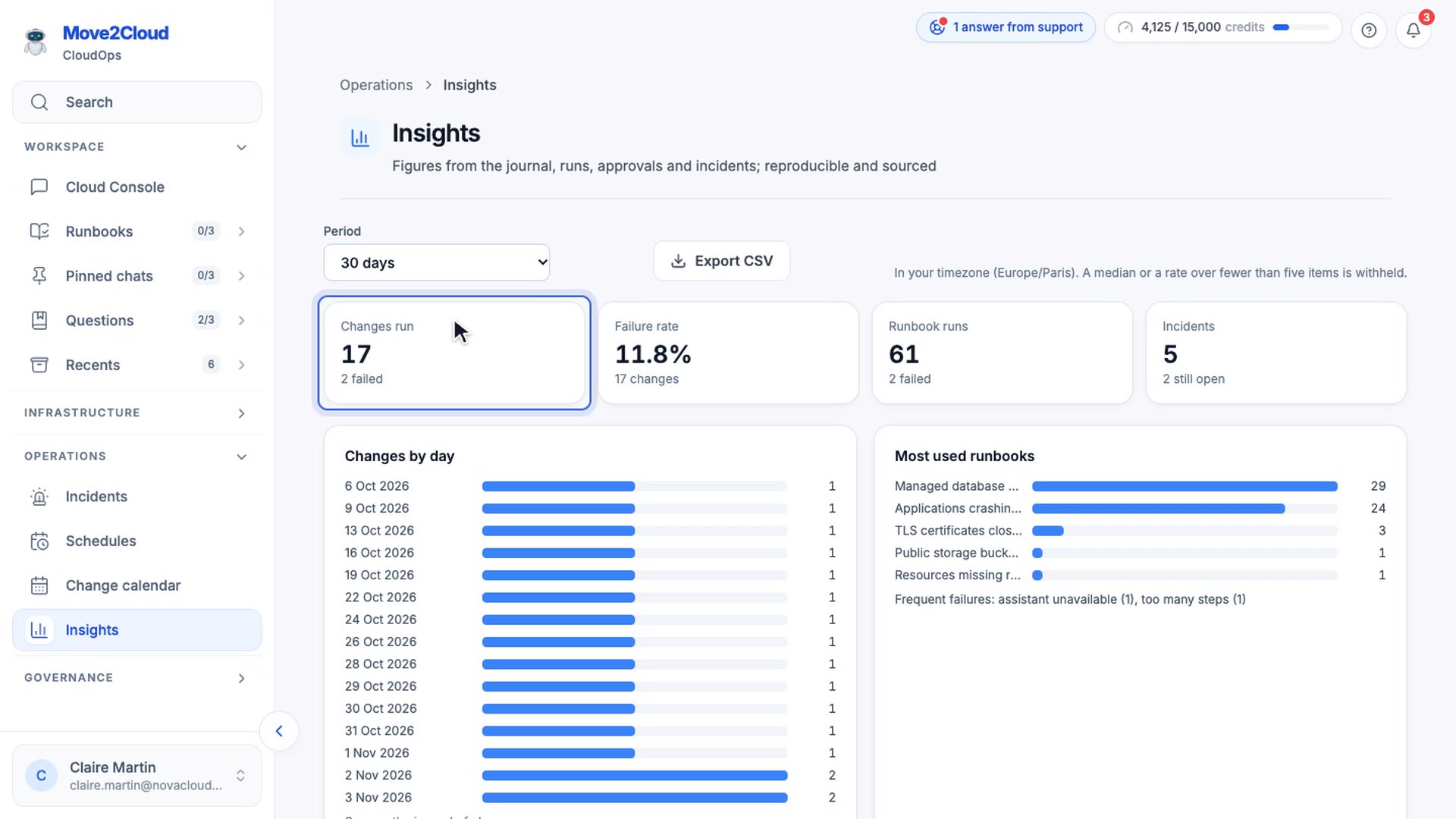
Figures drawn from what is recorded: the changes of the journal, the runbook runs, the approvals and the incidents.
What you see
The changes run and those that failed, the most used runbooks, the approval times and the incidents of the period.
What it brings
Each figure can be traced to its source. A median or a rate over fewer than five items is withheld, and no figure is given per member.
Example
Over 90 days, a suggestion notes that a certificate runbook failed four times out of twelve: its account's permissions or its parameters need checking. A suggestion is a rule on figures, never a conclusion about a cause.
With your plan
From the Pro plan, over 7, 30 or 90 days; on Enterprise, over twelve months too, with their CSV export.
The step-by-step guide is in How to, for the members of an organisation. Open the detailed guide
Policies
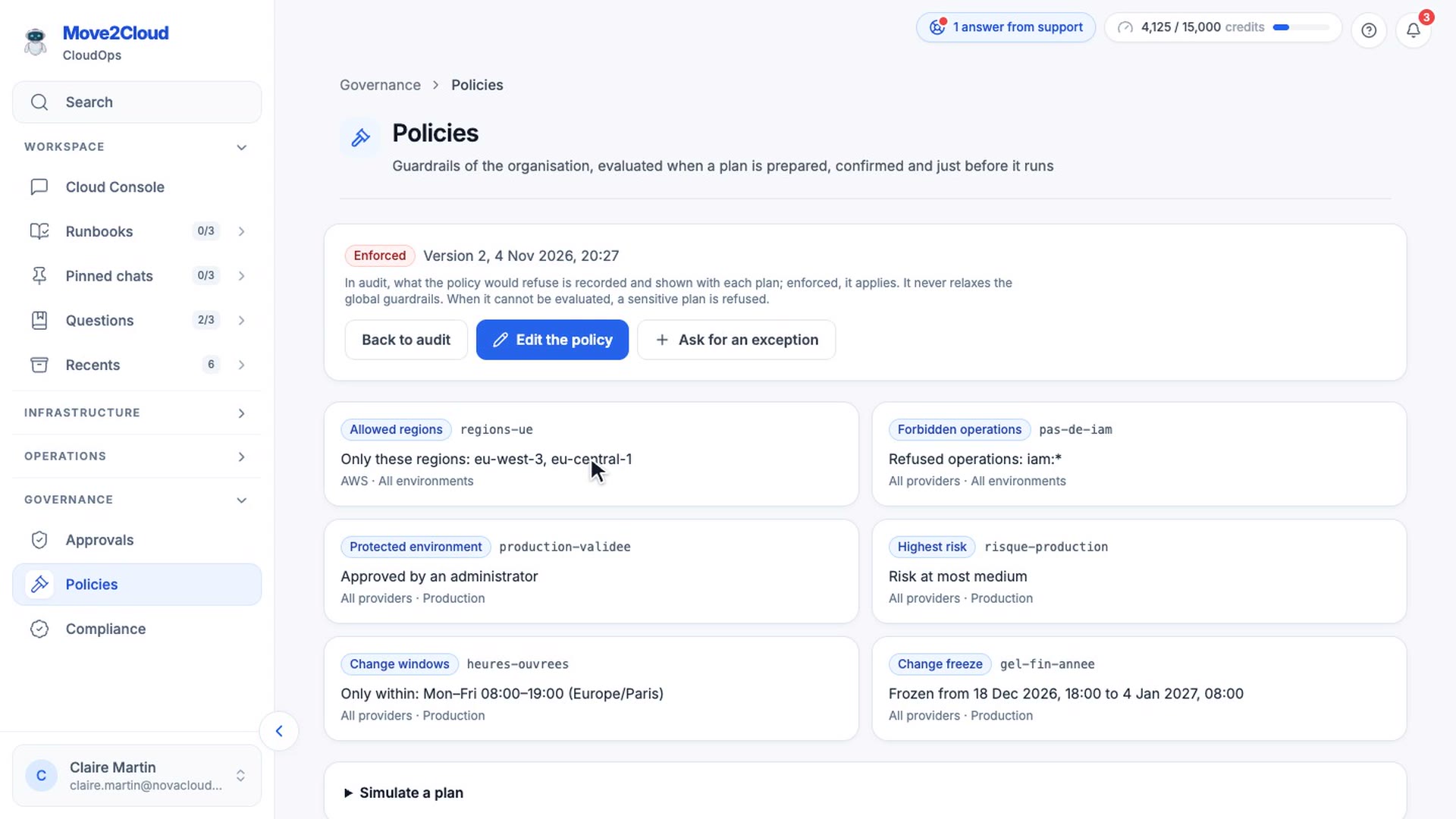
Your organisation's guardrails for changes, written as a versioned document: allowed regions, forbidden operations, protected environments, highest risk, change windows and freezes.
What you see
The version in force and its rules, the evaluations that refused or held a plan, and a simulator that gives a policy's decision for a plan without changing anything.
What it brings
Rules checked when a plan is prepared, when it is confirmed or approved, and just before it runs. No code is ever run, and a policy never relaxes the global guardrails.
Example
Deleting machines outside the allowed regions, at high risk, in production: the simulator shows the plan refused, with each rule it breaks.
With your plan
From the Pro plan, observed only (audit), up to five rules among allowed regions, forbidden operations, highest risk and change windows. On Enterprise, enforced, with every kind of rule, a hundred rules at most, and exceptions.
The step-by-step guide is in How to, for the members of an organisation. Open the detailed guide
Compliance
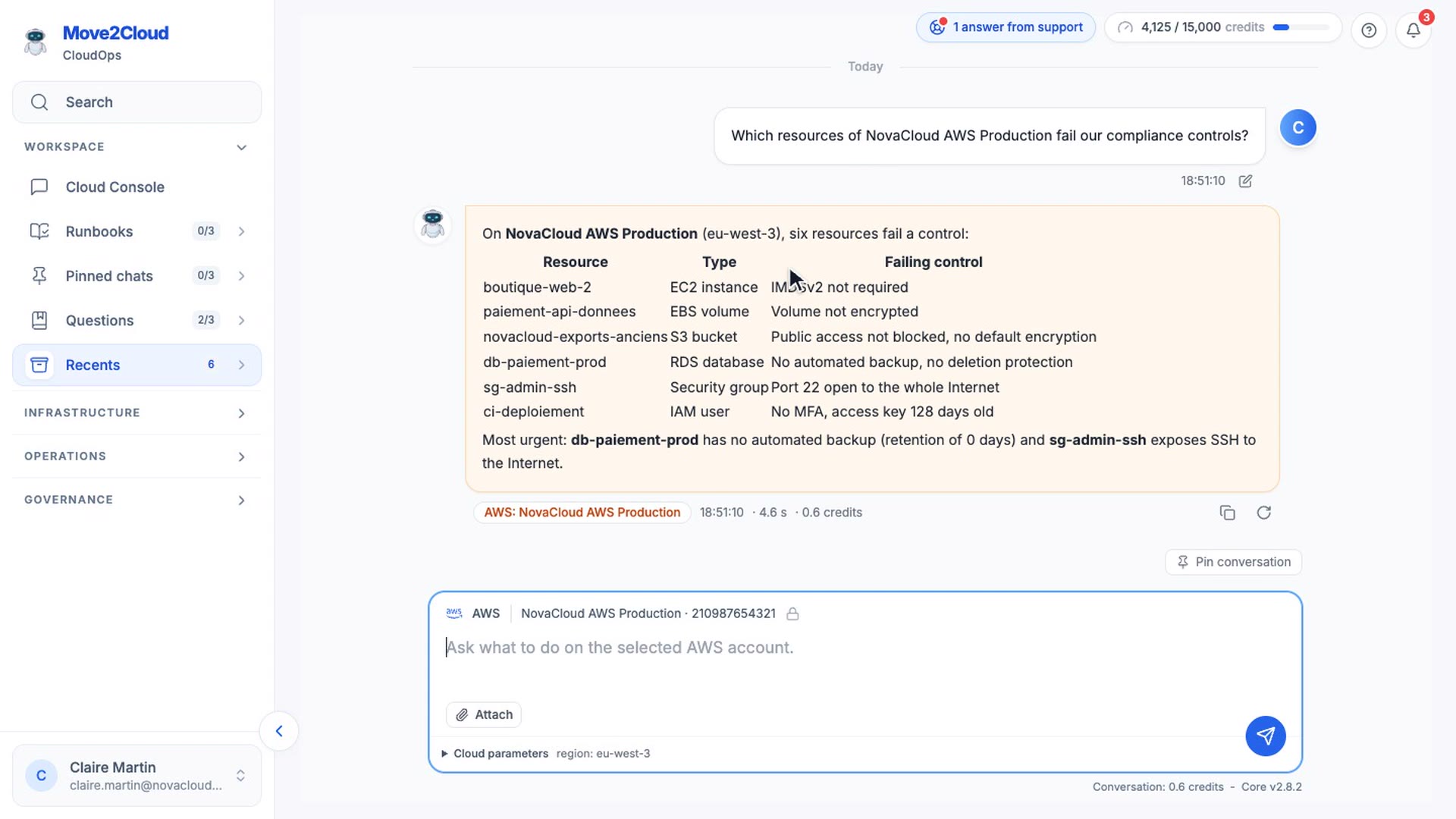
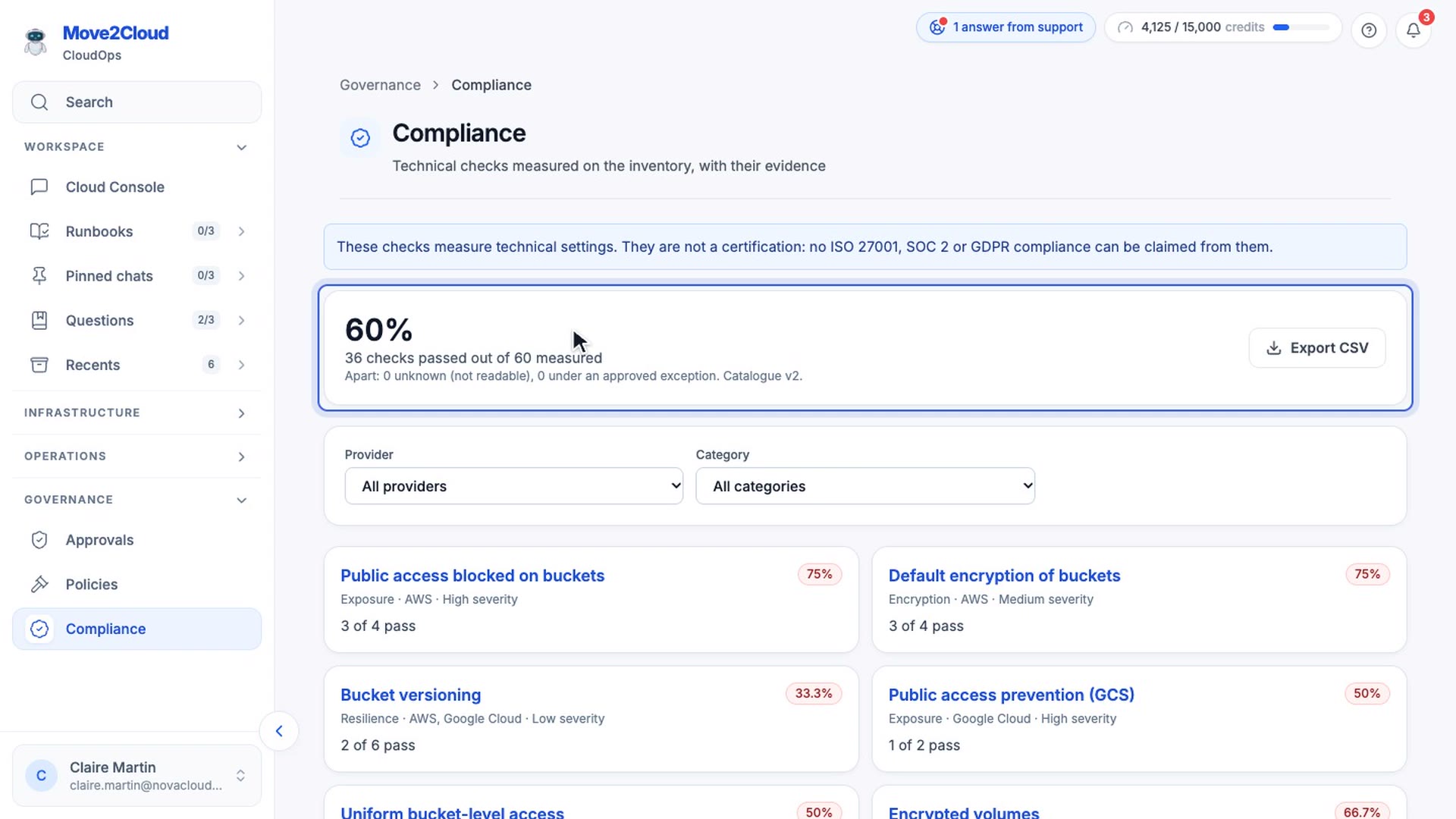
Technical checks measured on the inventory: exposure, encryption, resilience and access, each with its evidence.
What you see
A score with its denominator, the controls by family and severity, and for each control the failing resources, with the value read and the date it was observed.
What it brings
The settings that weaken your accounts, found across providers. These checks measure settings: no ISO 27001, SOC 2 or GDPR compliance can be claimed from them.
Example
Two network rules let the Internet in, one on AWS and one on Google Cloud. A fix is prepared as a plan in a conversation, then approved and verified like any change; on Enterprise, an exception can be asked instead, approved by another administrator.
With your plan
From the Pro plan, the essential controls of each provider. On Enterprise, every control of the catalogue, the exceptions approved by a second administrator and the export of the evidence.
The step-by-step guide is in How to, for the members of an organisation. Open the detailed guide
Integrations
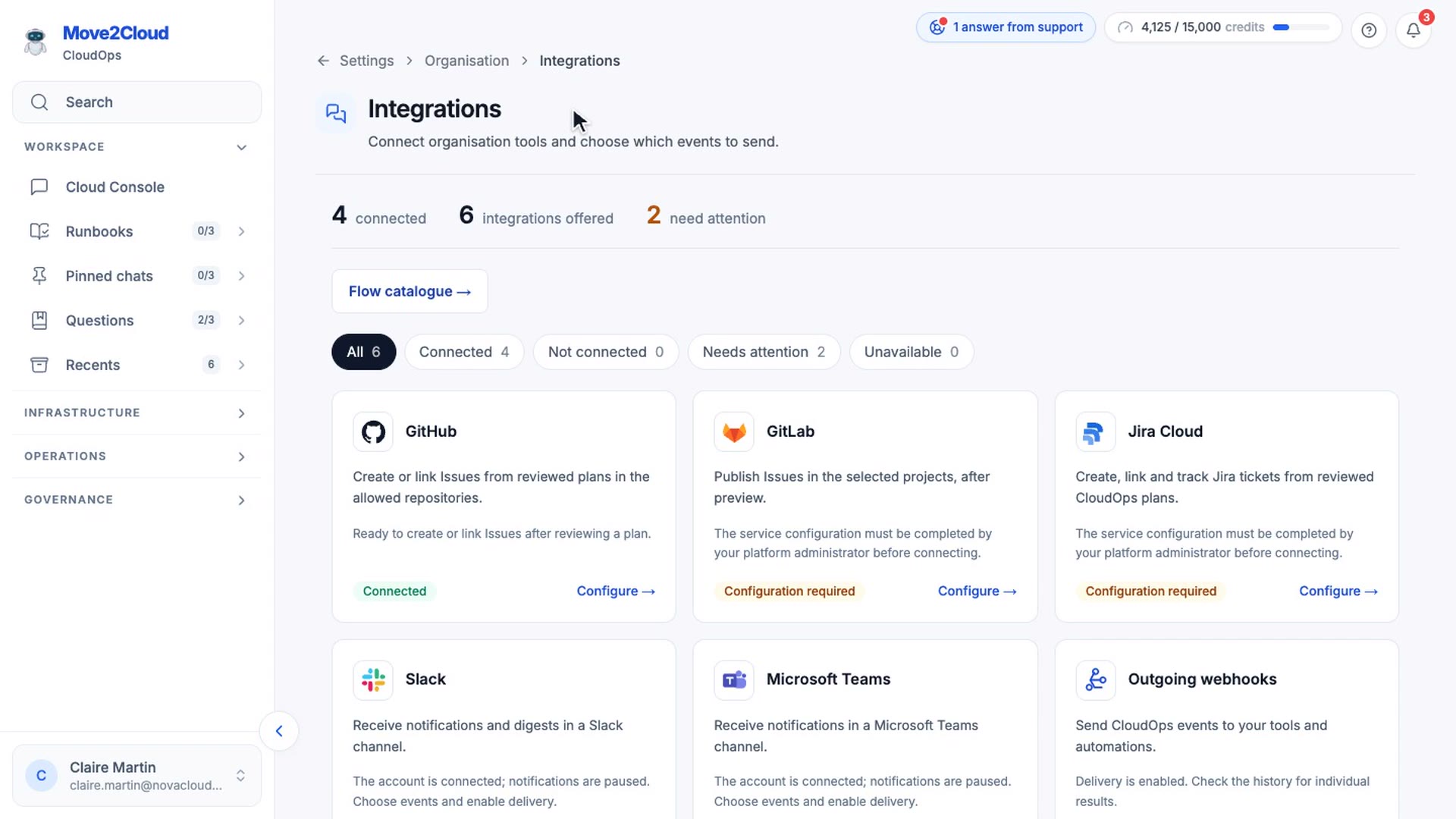
Integrations connect CloudOps Move2Cloud to your team's tools. An administrator sets them up in Settings → Integrations; none of them gives a right on your cloud accounts.
Slack and Microsoft Teams
The notifications you choose, such as an approval requested, a failed run, an incident or a critical resource, posted in a channel of your team, in French or English, with a cap per hour beyond which they are grouped.
Jira Cloud
A ticket prepared from a saved plan, in a project you authorised: you read its preview and confirm it, and nothing is created without that confirmation.
GitHub and GitLab
An Issue prepared from a saved plan, after its preview; the expected state that Drift compares; and, with Enterprise, runbooks synchronised from a repository. Only the repositories and projects you authorise are used.
Outgoing webhooks
With Enterprise, signed events sent to n8n or to your own tools: a plan created, an approval requested or decided, an execution started, completed or failed. They authorise no cloud operation.
Enterprise sign-in
With Enterprise, your colleagues sign in through your Microsoft Entra ID directory: see Enterprise sign-in, in Organisation and account.
With your plan
Slack, Microsoft Teams, Jira Cloud, GitHub and GitLab come with the Pro and Enterprise plans; outgoing webhooks and enterprise sign-in with Enterprise.
The step-by-step guide is in How to, for the members of an organisation. Open the detailed guide
Notifications and First Steps
What happens in your organisations, said where you want it: in the console, by e-mail, in your browser or in your team's channels.
The bell
At the top right of every screen, your unread notifications, the important ones in red. The Notifications page keeps those of the last 90 days, by level and by subject.
Your preferences
Each member chooses, subject by subject, what reaches them under the bell, by e-mail or in the browser, and whether they receive a weekly recap. An important notification always stays under the bell, and the e-mails about the subscription and its payments are always sent.
The organisation's notifications
Administrators choose, event by event, which destinations receive them, a Slack or Microsoft Teams channel, at once or in a daily or weekly digest. The delivery history shows each message and its result; a message accepted by Slack or Teams is not proof that it is shown in the channel.
The events
Your own notifications cover your approvals, the AI credits, the subscription, payments and support. The organisation's events cover approvals, failed executions, incidents, critical resources and drifts.
First steps
A guide in the corner of the screens walks a new user through their first days: the organisation's details and a plan (administrator), a cloud account, a first question, then an export, the generated files, Cloud Intel and the team. Each step is ticked as soon as it is done. Hidden before its end, it comes back from Help → First steps in the profile menu; once finished, from Settings → Preferences.
The step-by-step guide is in How to, for the members of an organisation. Open the detailed guide
Teams and Organisations
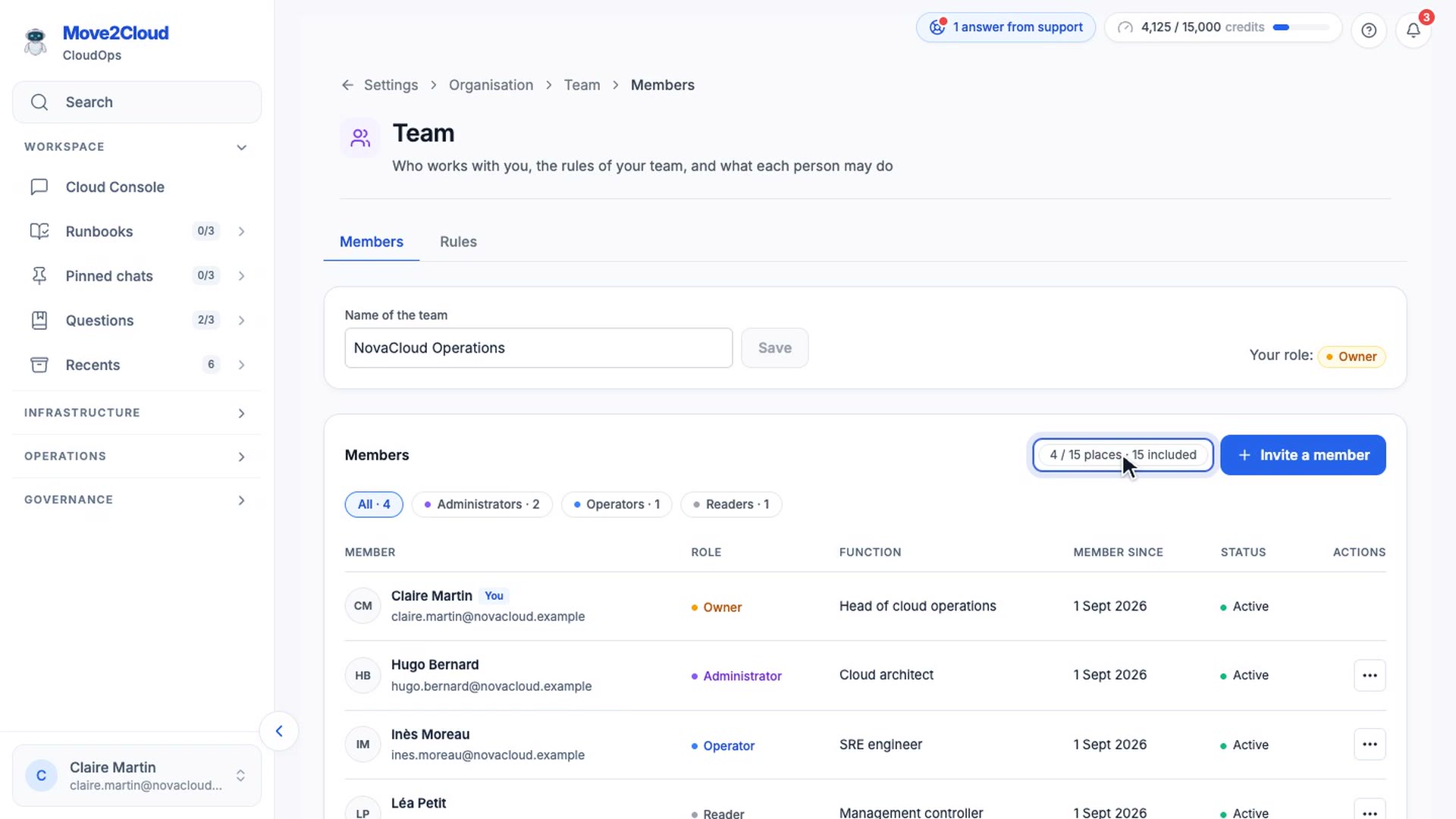
An organisation is the people who share cloud accounts and one subscription. Working alone, you are the only member, and the administrator, of yours.
One organisation, or several
Everyone has an organisation of their own, and belongs as well to each team that invited them. After signing in, someone who belongs to several chooses the one to work in; the profile menu names it and lets you switch.
What an organisation keeps to itself
Its cloud accounts, its conversations, the role of each member, its subscription and its monthly AI credits. A conversation opened in one organisation is not visible from another.
Sharing a cloud account
A connected account is used by the whole team, or kept for its administrators only, from the account's menu in Cloud Accounts. Conversations stay personal: only cloud accounts are shared. A change waiting for approval shows its plan to the administrators, the answer of a runbook run is shown to them too, and each change run is kept in the journal with its report.
Approval by a second person
With the Pro and Enterprise plans, in Settings → Team → Rules, an administrator chooses which changes of an operator wait for an administrator: none, the sensitive operations, or every change; with the Enterprise plan, two-person approval, on by default, submits the administrators' own sensitive operations to another administrator. The changes waiting are in Approvals, with their plan; the journal says who approved each one. On Standard, roles are basic: a colleague is an operator or a read-only member.
What each role may do
- Reader
- Asks questions about the cloud accounts. No change is prepared or run.
- Operator
- Asks questions, has changes prepared and runs them, or has them approved by an administrator when the organisation asks for it.
- Administrator
- Does the same, manages the team, its cloud accounts and its request for the Enterprise plan, and approves the changes of operators.
The owner is the administrator who holds the subscription: they subscribe, change plan or cancel, manage the invoices, the means of payment and the extra seats, hand the organisation over to a member, and are the only one who deletes the organisation's runbooks for good.
Teams start with the Standard plan: two people, with basic roles (a colleague is an operator or a read-only member). Complete roles and the approval of changes come with the Pro and Enterprise plans.
The step-by-step guide is in How to, for the members of an organisation. Open the detailed guide
The journal and audits
Knowing who changed what, when and why is the first thing an incident review, a security audit or a compliance check asks for.
CloudOps Move2Cloud keeps the journal of the organisation: every change run, the account it ran on, who asked for it, who confirmed or approved it, and the report of what happened. Administrators also see a summary of the activity by account and by member.
The journal exports as CSV, for a spreadsheet, or as PDF, for an audit file.
Enterprise sign-in (SSO)
With the Enterprise plan, your team can use its Microsoft Entra ID directory to sign in. The organisation controls who joins, whether directory sign-in is required, and the exceptions. A directory already configured in FinOps Move2Cloud can be linked to CloudOps, and the other way round.
Open the private setup guideSubscription and Billing
The product is used on a subscription: the organisation owner's, shared by its team. Prices exclude tax and are per month.
The plans, their prices and what each includes are on the Plans page. See the plans
The subscription and its monthly AI credits are shared by the organisation. Usage can be followed by cloud provider and account. The credits start again each calendar month; extra credits bought for the month expire at its end.
Members consult invoices; the owner manages the subscription and payment, and administrators can buy AI credits and request an Enterprise quote. Card, SEPA direct debit and PayPal payments are handled by Mollie. Move2Cloud keeps neither card number nor IBAN.
Subscribing
During the 14-day trial, or on Starter, the owner subscribes alone to Standard or Pro, from Settings → Subscription: a dialog asks for what is still missing (the organisation's details, then a means of payment: card, SEPA direct debit or PayPal), then confirms the plan, active at once. During the trial, subscribing does not interrupt it: nothing is billed before it ends, and the plan chosen then is billed from the day it ends, whatever day it was chosen, on the first invoice. The trial has its own limits until then: on Standard, 50 AI credits, 2 members and 3 cloud accounts; on Pro, 200 AI credits, 5 members and 10 cloud accounts; the plan's allowance, 1,000 or 3,000 AI credits a month, comes once it is billed. Until then, moving from Standard to Pro, or back, is immediate and free, and cancelling costs nothing: notice and prorata only apply after the trial.
Settings → Subscription →Changing plan
A higher plan applies at once; the next invoice includes the difference of price for the days left of the month paid, in proportion, then the new price: from Standard (€79 excl. tax) to Pro (€349 excl. tax) with 16 days left of a 31-day month, €270 × 16 / 31 = €139.35 excl. tax. Before confirming, the summary gives the VAT and the prices incl. tax (20% for an organisation billed in France; on the invoice elsewhere). A lower one, chosen once the organisation fits in it, applies on the first day after the month paid, with no refund. The Enterprise plan is on quote, requested by an administrator: nothing changes and nothing is charged before the quote is accepted. The four plans side by side, and what each kind of change does, are in Changing plan.
Changing plan →Settings → Subscription →Cancelling
The owner cancels from Settings → Subscription, after confirming who they are: a month's notice once the trial is over (subscribed during the trial, cancelling before the first invoice costs nothing, and the trial goes on to its end), invoiced until then, with no refund; the cancellation can be taken back until its day. Then the organisation carries on with the Starter plan, free.
Settings → Subscription →Deleting your account and your organisation
The organisation: Settings → Organisation → Security → Delete the organisation, by its owner, signed in a moment ago; its box first, then, if you wish, your Move2Cloud account's. It goes with its conversations, its cloud accounts and its team; you keep your account and carry on in an organisation of your own. Your organisations in FinOps Move2Cloud are not touched: while your Move2Cloud account still opens one of them, the account stays, and the page says so. Your account: Settings → My account → Security, after typing your e-mail address; the organisations you are the only member of go with it (their box ticked for good), and the owner of one with a team hands it over to a member, or deletes it with its team. An organisation whose paid plan is running is deleted once the plan has ended: cancel it first. Your accounts at the cloud providers are never touched.
Settings → Organisation →Settings → My account → Security →Confirmations
Each change of the subscription (subscription, higher or lower plan, answer to a request, cancellation and its taking back, a change made by Move2Cloud, the first day billed after a trial) is confirmed to the owner by e-mail and in the notifications, whatever the notification choices. The end of a trial is recalled three days, then one day before.
Notifications →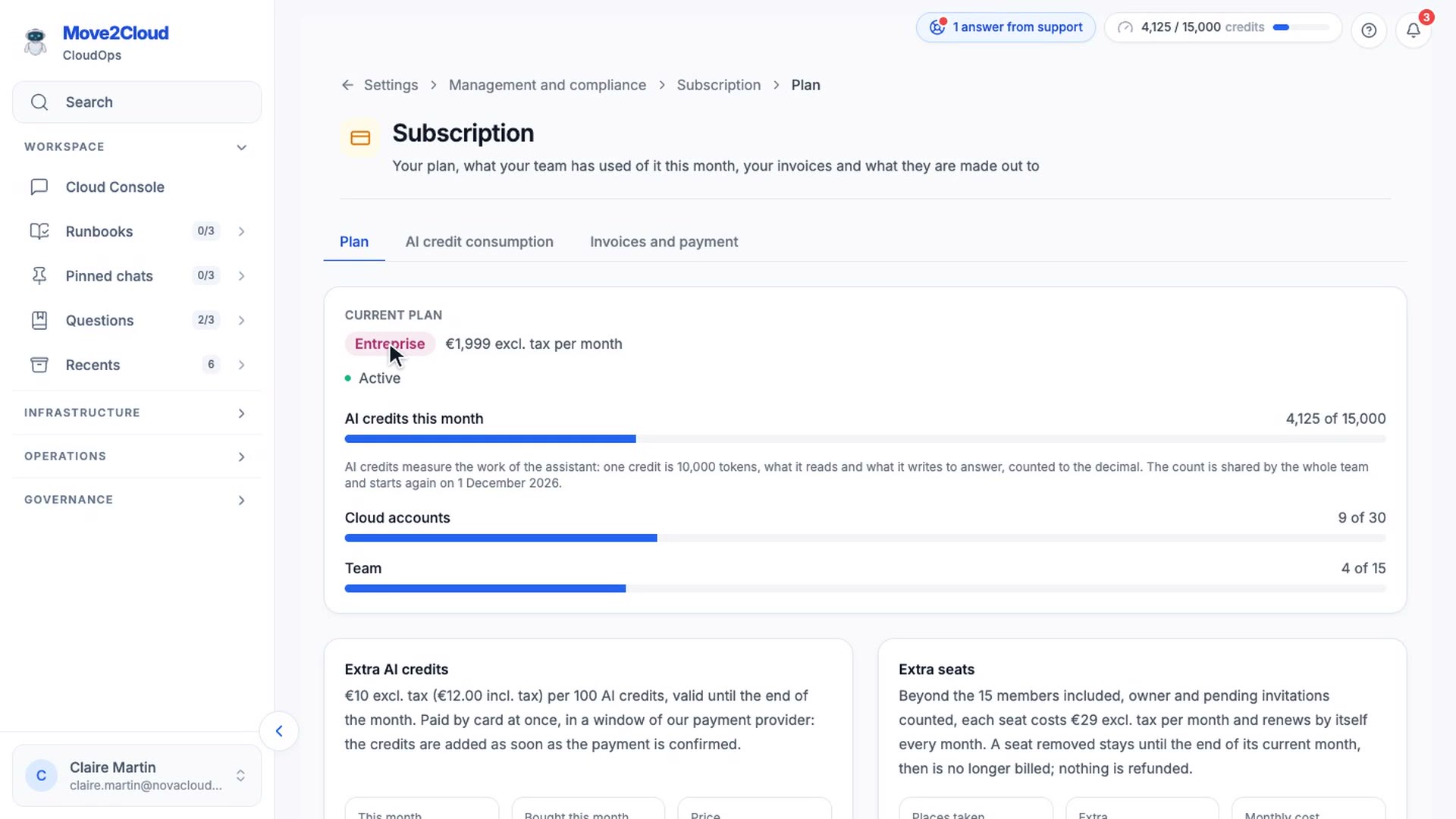
Changing plan
The four plans side by side, then what each kind of change does. Prices exclude tax and are per month.
| Starter | Standard | Pro | Enterprise | |
|---|---|---|---|---|
| Price | Free, with no time limit | €79 excl. tax a month | €349 excl. tax a month | Custom pricing |
| People, owner included | 1, the owner | 2, the owner and a colleague | 5, then €29 excl. tax a month each more | 15, then €29 excl. tax a month each more |
| Cloud accounts | 1 | 3 | 10 | 30 |
| AI credits, for the whole team | 20 AI credits a month | 1,000 AI credits a month | 3,000 AI credits a month | 15,000 AI credits a month |
| Changes run by the assistant | No: questions only | Yes, once confirmed | Yes, once confirmed | Yes, once confirmed |
| Infrastructure, operations and governance | No | No | Every module, limited: basic compliance, policies observed only | Every module, complete |
| Files joined to questions | No | Yes | Yes | Yes |
| AI credits bought for the month | No | Yes, €10 excl. tax per 100 credits | Yes, €10 excl. tax per 100 credits | Yes, €10 excl. tax per 100 credits |
| Conversations shown | The last 7 days | The last 30 days | The last 180 days | All of them |
| Runbooks of your own | No | 10 | 50 | 200 |
| Team roles | No | Basic: operator or read-only | Complete: reader, operator, administrator; changes approved by an administrator | Advanced: complete, with two-person approval on by default |
| Integrations | No | No | Slack, Microsoft Teams, Jira Cloud, GitHub and GitLab | Pro's, and the outgoing webhooks (n8n) |
| Support | Limited to the documentation and the FAQ | Answer within one business day | Answer within one business day | Priority requests, answered within 4 business hours |
| Enterprise sign-in | No | No | No | Yes |
What each kind of change does
- To a higher plan: at once; the next invoice includes the difference of price for the days left of the month paid, in proportion, then the new price.
- To a lower plan: on the first day after the month paid, with no refund, once the organisation fits in its limits; “Keep the plan” gives it up until then.
- To Enterprise: on quote; Move2Cloud applies the plan once the quote is accepted, and nothing is charged before.
- Back to Starter: by cancelling, after a month's notice once the trial is over; what goes beyond Starter is kept, out of use, until a plan is subscribed again.
- During the trial: subscribing does not interrupt it, and moving between Standard and Pro is immediate and free.
Moving back to a lower plan
It applies on the first day after the month paid. It is chosen only once the organisation fits in its limits: “Review the change” opens a dialog showing what to remove (cloud accounts, members or invitations), with management links. Only the final confirmation is blocked; returning to the dialog reloads usage. Whatever is added beyond them before its first day is then kept, out of use, the first ones in staying.
- The extra seats bought end at the end of their month, when the new plan sells none (Standard, Starter).
- On Starter, the members beyond the owner and the cloud accounts beyond one are kept, inactive, until a plan is subscribed again.
See the plans →Each move compared criterion by criterion, in How to →
Security and Permissions
Move2Cloud follows the Principle of Least Privilege: the assistant can do what the access you created allows, and nothing more; nothing changes in an account before someone allowed to confirms it.
What protects your accounts
- Limited permissions: the access you create at each provider, read-only or wider.
- Human confirmation before any change runs.
- Approval by an administrator, or by two, when your rules require it (Pro and Enterprise).
- Policies checked before a plan runs, from the Pro plan.
- A journal of every change run, with who asked, who confirmed and what happened.
- Traceability: the plan's fingerprint, the policy checks and the verification of the actual state are recorded.
Your cloud accounts
- Each account is connected with an access you create and keep the control of: read only, or with the changes you allow.
- No master key: AWS through a role created by CloudFormation, Azure through an application you authorise, Google Cloud through a service account you give roles to.
- The credentials you give (OVHcloud, Scalingo, Scaleway, or a key of your own) are checked, then encrypted in the database, and never shown again.
- Removing the access at the provider cuts it at once; removing the account here deletes its credentials.
Changes
- Every change is first shown as a plan, with its steps and its risk; nothing runs before it is confirmed, and the result is read back from the account.
- A read-only member can ask questions but no change is prepared or run for them; an operator prepares and runs changes; an administrator also manages the team and its cloud accounts.
- With the Pro and Enterprise plans, an administrator can require their approval before an operator's change runs, for every change or only for the sensitive operations; with Enterprise, two-person approval holds the administrators' own sensitive operations too.
- From the Pro plan, the organisation's policies are checked when a plan is prepared, when it is confirmed or approved, and just before it runs.
- An approved change runs exactly the plan the administrator examined, once: a plan that changed in the meantime is refused, and a request left without an answer expires after 24 hours, without running.
- After a change, the console checks the actual state of what it changed: a provider accepting a request does not prove that the resource reached the expected state.
- Every change run is kept in the journal, with who asked, who confirmed it and what happened.
Sign-in and team
- Passwords must contain at least 12 characters, an uppercase letter, a lowercase letter, a number and a special character.
- When choosing or resetting a password, a floating panel beside or above the field checks each requirement as you type, without making the form taller. Submission stays disabled until all five requirements are met and both passwords match. The identity service checks the requirements again on the server before accepting the password.
- Repeated failed attempts lock the sign-in for a while.
- Two-step sign-in, mandatory for every user: an authenticator app paired at the first sign-in, also asked when you sign in with Google, Microsoft, GitHub or GitLab.
- Signed out after 10 minutes without activity; the browsers signed in to the console are listed in My Account → Security, and signed out of it from there.
- Handing an organisation over, cancelling the subscription, deleting an account or the organisation, and setting up GitHub, GitLab, Jira or outgoing webhooks ask for a sign-in less than 10 minutes old: if needed, the action's button has you sign in again in a window, without signing out, then carries on.
- A cloud account is shared with the whole team or kept for administrators; conversations stay personal, except the answer of a runbook run, which the administrators can read.
- Exchanges are encrypted (HTTPS). The administration of the platform shows neither your credentials nor the content of your conversations.
Your Data
How Move2Cloud handles user data
Move2Cloud keeps what the assistant needs to work: who you are, your organisation, the access you give to your cloud accounts, your conversations and the count of your usage. This is a summary; the privacy policy is the reference.
Read the privacy policyYour account and your organisation
Your e-mail address and name, your organisation and its members, its subscription and its invoices. Your password and two-step sign-in are held by Move2Cloud's identity service, the password only as a hash.
Access to your cloud accounts
The keys and authorisations you give are encrypted before being saved and never shown again. They serve to read the account for your questions and your runbooks and, from the Pro plan, for the collectors of the operations modules, which only read; and to run the changes you confirm. Removing a cloud account deletes them.
Conversations and usage
Your messages, the files you attach, the answers and the plans are kept so that you can reopen a conversation, with the tokens each answer used. Your notifications are kept 90 days.
Your infrastructure, observed
The operations modules keep, per organisation, what the collectors read of your cloud accounts: identifiers, states, tags and attributes of the resources, their versions and links, the providers' health signals, the drift and compliance results, incidents, schedules, planned changes and policies. Never a secret, an environment variable or a signed link. Versions follow your plan's history (400 days at most), signals 7 days, collections 90 days; a resource deleted at the provider is purged 30 days later.
Downloading and deleting
From My data, download everything kept about you as one file; from My Account → Security, delete your account: your conversations and their files go with it, and an organisation you are alone in with its cloud accounts. Invoices are kept for the period the law requires.
What you control
- Your name, your password and two-step sign-in are changed from your profile.
- An administrator of the organisation adds, checks, updates or removes its cloud accounts from Settings → Cloud Accounts.
- Your conversations are read again and deleted from History; deleting one deletes its messages and its attached files.
- Your account can be deleted from your profile, and your data downloaded from Settings → My data. For any other request about your data, write to contact@move2cloud.fr.
What Move2Cloud commits to
- Your data is neither sold nor used for advertising.
- The public site measures visits and the origin of registrations only with your agreement in the cookie manager, without an advertising pixel; a new organisation keeps the source and campaign of its registration for 30 days.
- Exchanges are encrypted (HTTPS) and cloud credentials are encrypted in the database.
- The service and its databases are hosted in France; attached files are stored in France.
- The answers of the assistant are produced in the European Union for Google Cloud, OVHcloud, Scalingo and Scaleway, in the United States for AWS, Microsoft Azure and the conversations without a cloud account; your cloud credentials are never sent. The providers that produce them do not use the conversations to train their models, and keep them 30 days at most, save the exceptions of their terms.
- A connected cloud account is read for your conversations and your runbooks and, from the Pro plan, by the collectors of the operations modules, which only read; it is changed only by a plan confirmed, and approved when your rules require it. The administration of the platform shows neither your credentials nor the content of your conversations.
Sovereignty
A sovereign application
CloudOps Move2Cloud and its data are hosted in France, with French and European providers; apart from the integrations your organisation turns on, only the answers of the assistant may be produced outside the European Union.
Application and data in France
The console, its services, the databases and their backups run at Scalingo, a French host, in its Paris region. Sign-in is handled by Move2Cloud's own identity service, hosted there too.
Files and e-mails in France
The files and images attached to conversations are stored at Scaleway, in Paris, and the e-mails of the service are sent from there.
Invoicing and payment in Europe
Invoices are issued in France and payments are handled by a European provider. Move2Cloud keeps neither card number nor IBAN.
On the public clouds, only what connects your account
For a client on AWS, Move2Cloud keeps on AWS only the CloudFormation template that creates the role, and the technical identity that uses it. For Azure, only the application you authorise in your directory. For Google Cloud, in its own project, the service account you give roles to. No client data is stored on these clouds.
The answers of the assistant
They are produced by automated processing providers, according to the cloud provider of the conversation: in the European Union for Google Cloud, OVHcloud, Scalingo and Scaleway; in the United States, under the standard contractual clauses of the European Commission, for AWS, Microsoft Azure and the conversations without a cloud account. These providers receive the content of the conversation, never the credentials of your cloud accounts; they do not use it to train their models and keep it 30 days at most, save the exceptions of their terms; section 4 of the privacy policy gives the detail.
Troubleshooting
Before contacting support, check the selected organisation, your role, the cloud account and the plan. Keep the error message and the time; never include credentials or customer data.
No cloud answer
Check that the intended account is connected and accessible to you, that its provider permissions allow the requested read and that AI credits remain. A general conversation does not inspect a connected cloud account.
A change is waiting or refused
Read the plan and its current state. Your role, provider permissions and the organisation’s approval policy all apply. If the plan changed, prepare and review a new one. An approval alone does not prove execution or actual-state verification.
An option is unavailable
Compare the current plan with the published limits. Some integrations and Git sources also require platform activation. Ask an organisation administrator to review the configuration.
An export or notification is missing
Check the generated files and the delivery history separately. An accepted delivery does not prove final receipt. For an uncertain result, inspect the history before trying again. The signed-in guide explains personal preferences and organisation destinations.
The step-by-step guide is in How to, for the members of an organisation. Open the detailed guide